 Recipe Lab Studio
Film looks for your Fujifilm photos
Recipe Lab Studio develops your Fujifilm photos on your phone with 88 film looks, film grain and mist. On iPhone, iPad and Android, for one payment.
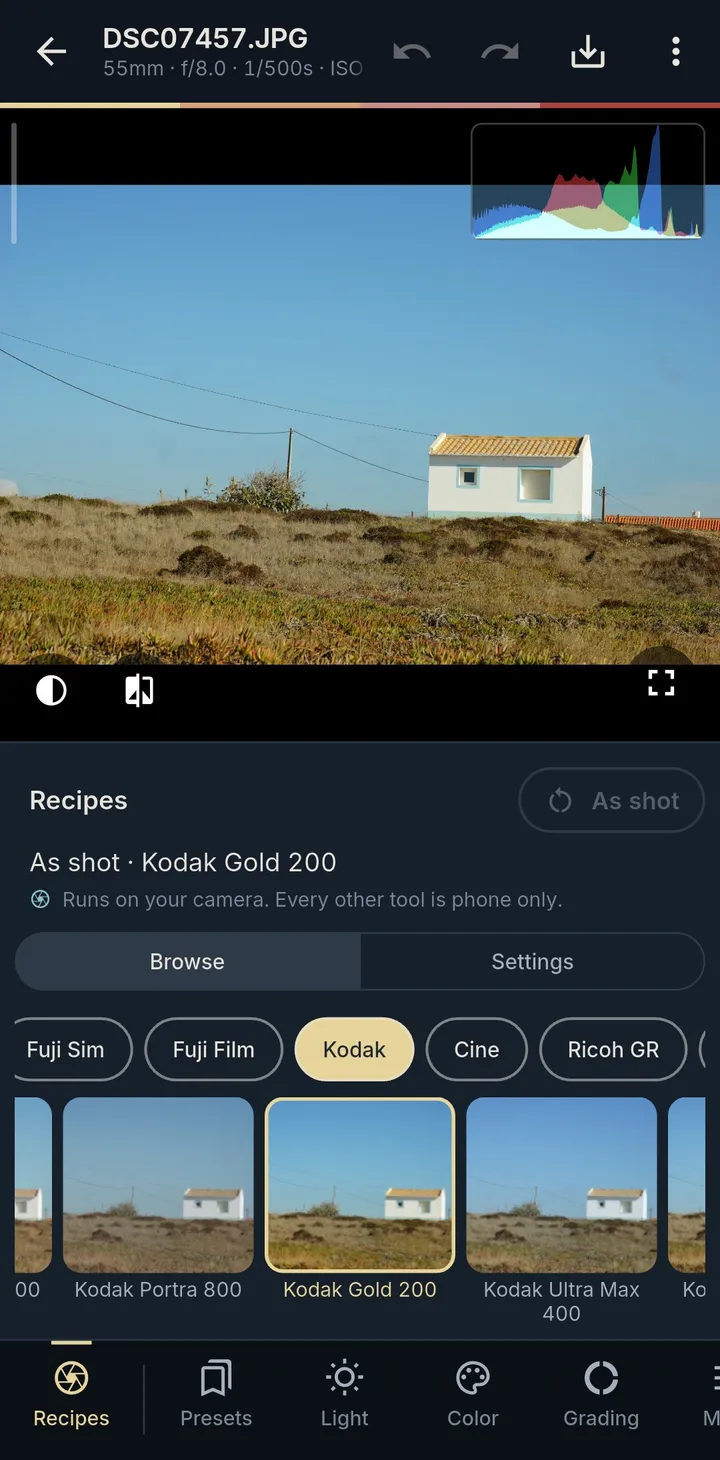
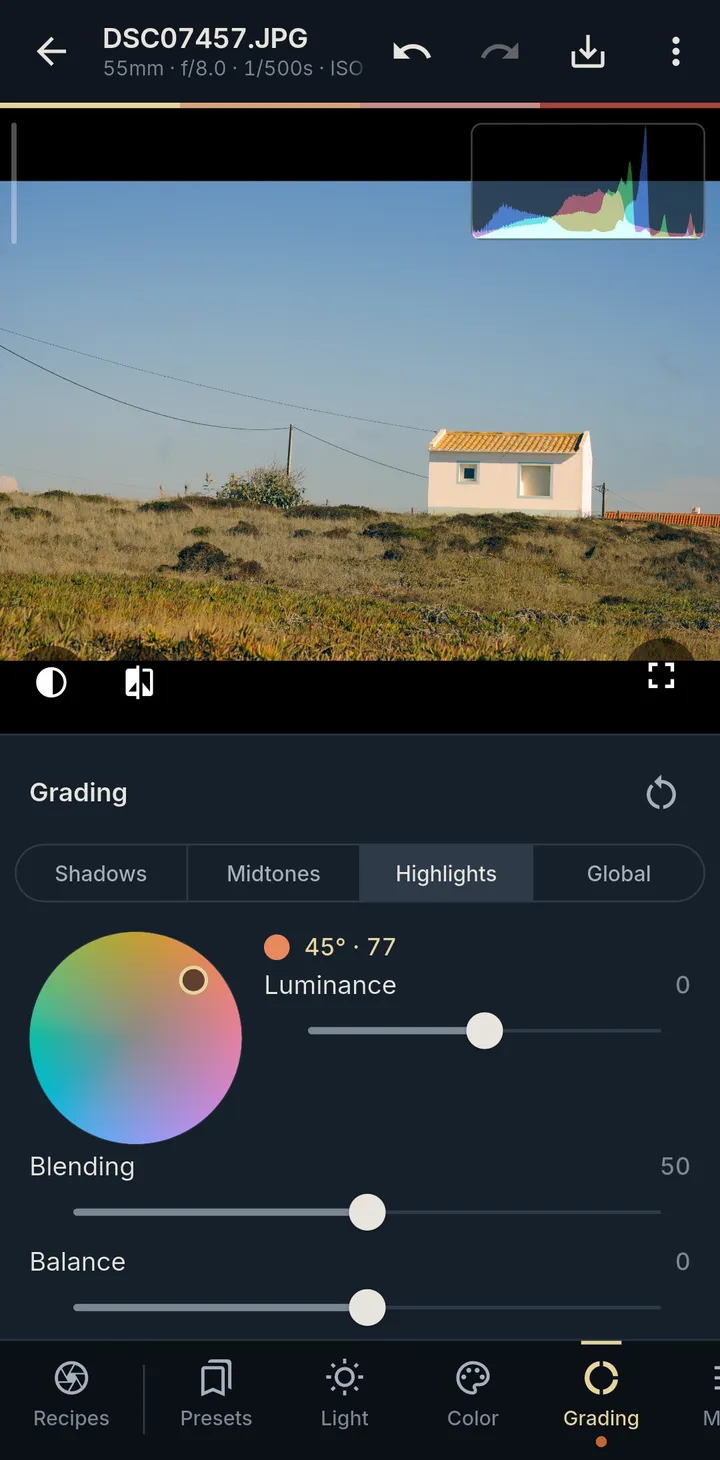
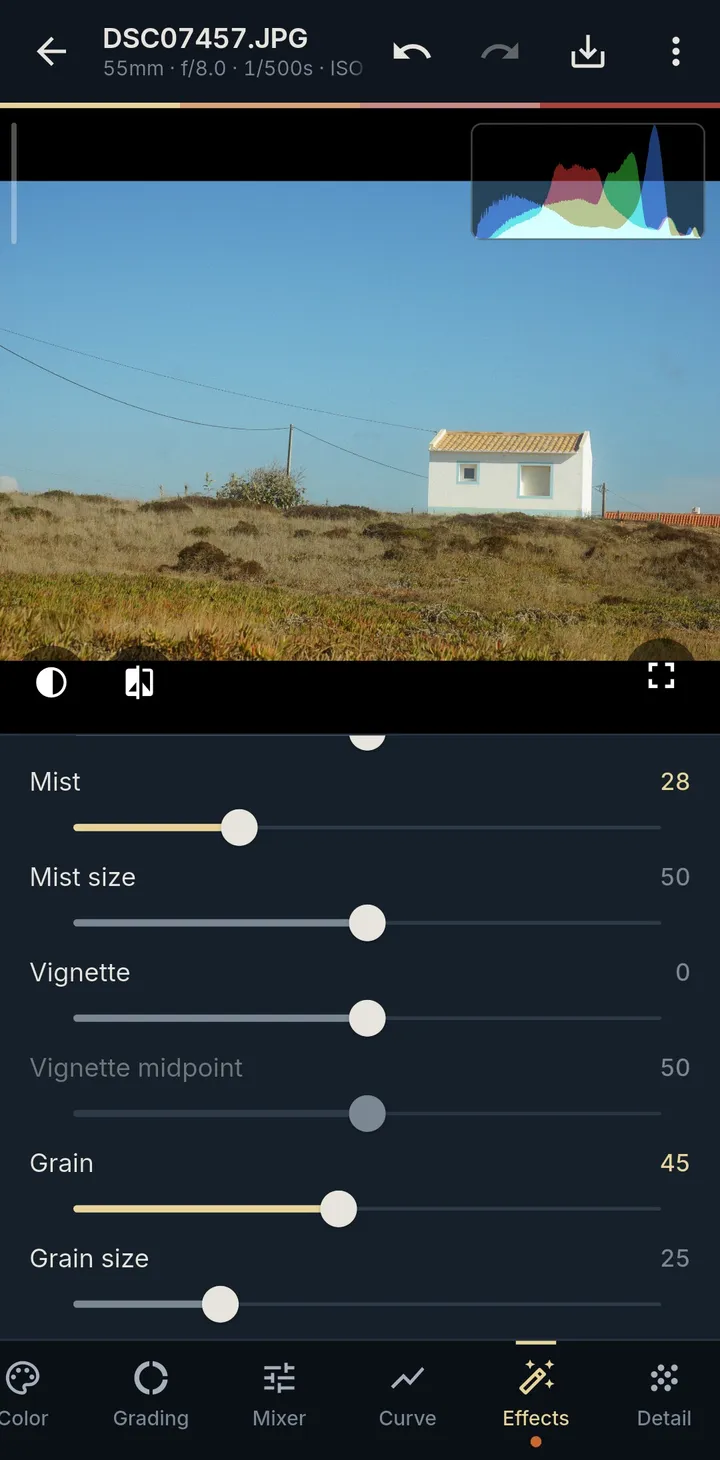


Fujifilm's film simulations shape the camera's JPEG. Studio puts a film look on your RAFs, with looks inspired by Classic Chrome, Velvia, Eterna and more, plus grain and mist.
Opens
- RAF
Getting Fujifilm photos onto your phone
Fujifilm's own phone app sends photos over Wi-Fi. For the RAF files themselves, a card reader on the phone's USB-C or Lightning port is the sure way, and it works with every X and GFX body. Then open the RAFs in Studio.
How it works
- 1
Bring the photos to your phone
With the camera maker's app or a card reader. Studio opens them from your Photos library or Files.
- 2
Pick a look
Every Recipe Lab look is one tap away, inspired by classic film stocks and cameras.
- 3
Finish and export
Add film grain and mist, grade the colour, then export a full-size JPEG that keeps the camera, lens and exposure details.
Looks for your Fujifilm photos
Browse all 88 looks →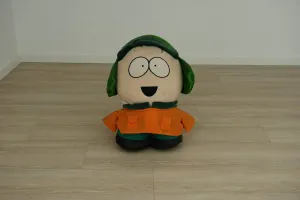
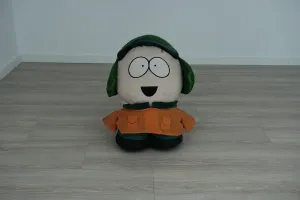

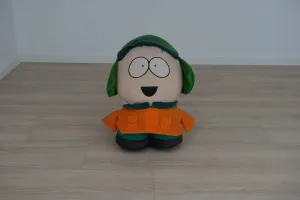
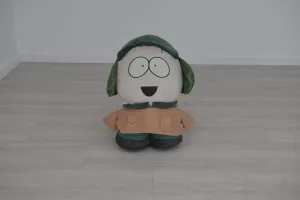
FAQ
Does Recipe Lab Studio open Fujifilm RAW files?
Yes: RAF. Photos from any other camera open too, as RAW, JPEG or HEIC.
Do I need a Sony camera?
No. The free Recipe Lab camera app, and the Wi-Fi import that goes with it, are for Sony cameras that run PlayMemories apps. From any other camera, move the photos to your phone first, then open them in Studio.
Is it a subscription?
No. You pay once in the App Store or Google Play and every tool is included. No account, no tiers, no monthly fee.
Recipe LabStudio
On iPhone, iPad and Android. One payment, every tool.